4 min read
Who came to the meeting? How long did they stay? What was said in the chat? After every session, a meeting attendance report answers those questions without any extra work. Teachers use it for attendance, trainers for certificates, sales teams for follow-ups. This guide shows where to find the report, what it holds and how to use it well.
Where to find the report
- Open the Meetings page and the Previous tab.
- Press Report next to the meeting.
A recurring meeting and your personal room have one report per session. Open the meeting page and look under Previous sessions: each row shows when the session started, how long it ran and how many people came, with its own Report button.
What the report shows
Participants
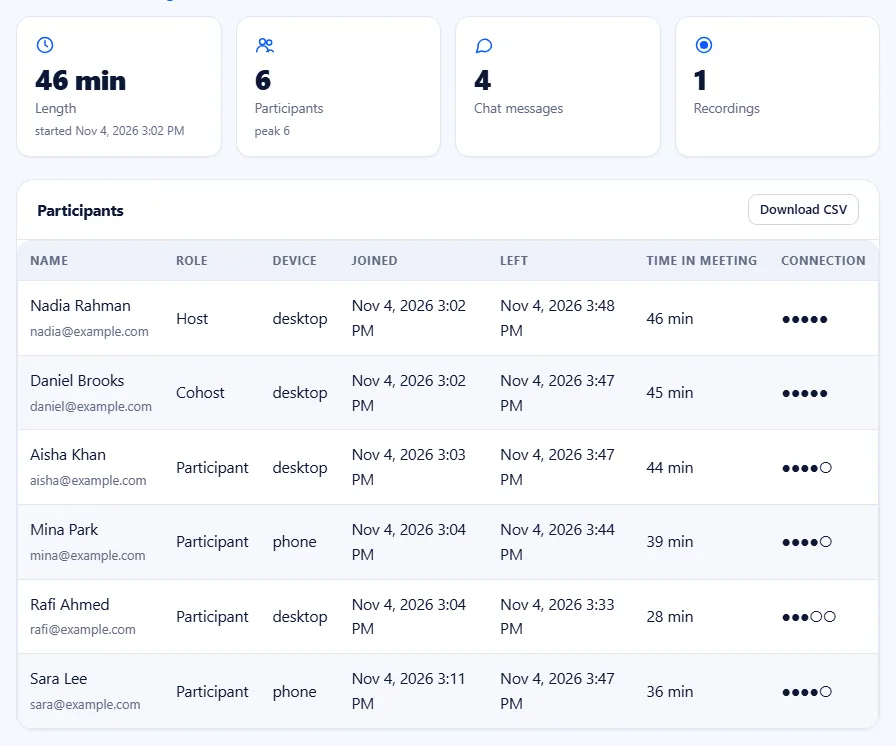
Every person who joined, with their role, the device they used, the time they joined and left, the time in the meeting and the connection quality. People who were removed or not admitted are marked.
Chat
The chat messages of the session, each with its time and sender. Private messages are marked as private. The chat part needs a package with meeting reports. It is useful when someone shared a link or a decision in the chat and you need it later.
Timeline
Joins, leaves, mutes, removals, recordings and screen sharing, in order. The timeline helps when you need to know what happened, for example when a recording started or who was removed.
Download the report as CSV
Press Download CSV to open the participants in a spreadsheet. The file holds the name, e-mail, role, device, join and leave time, minutes and connection quality. From there you can:
- Mark attendance for a class or a course.
- Give certificates to people who stayed for most of a training.
- Send a follow-up e-mail to the people who joined a demo.
- Count how many people attend your weekly meeting over a term.
Tip: ask people to join with their real name. You can set the name people see in the preview, and the host can Rename someone in the room. Clear names make a clean report.
Better data with registration
For events and courses, switch on registration when you schedule. People give their name and e-mail before they get the join link, so the report can match each person to an address. For webinars, the report also shows who registered and who actually attended. See how to host a webinar.
Use reports to run better meetings
- Late joins: if many people join ten minutes late, start later or send a reminder.
- Early leaves: if people drop off after 40 minutes, the meeting may be too long. Split it, or add a break.
- Devices: if many people join from phones, make shared text bigger and keep slides simple.
- Quality: repeated low quality for the same person points to a network problem. Share our tips for slow internet.
A five-minute attendance routine for teachers
- Ask students to join with their full name, the same way every lesson.
- After the lesson, open the report from the Previous tab.
- Press Download CSV and paste the names and minutes into your class sheet.
- Mark anyone who stayed less than half the lesson for a quick check-in.
- Keep one sheet per term. Patterns, such as a student who always drops off early, show up fast.
Who can see the report
The report belongs to the host. People who joined do not see it. Reports stay after you delete a meeting, so your attendance records remain. The participants and the timeline are in every report; the chat log comes with packages that include meeting reports. Compare packages on the pricing page.
Frequently asked questions
Can the people who joined see the report?
No. The report belongs to the host of the meeting. Participants see only the meeting itself.
Can I export attendance to a spreadsheet?
Yes. Press Download CSV on the report page and open the file in any spreadsheet app.
Where is the report of one week of a recurring meeting?
Open the meeting page and find that session under Previous sessions. Each session has its own Report button.
Do reports stay after I delete a meeting?
Yes. Deleting a meeting removes it and its future sessions. The reports of past sessions stay. More detail is in the meeting reports help article.