4 min read
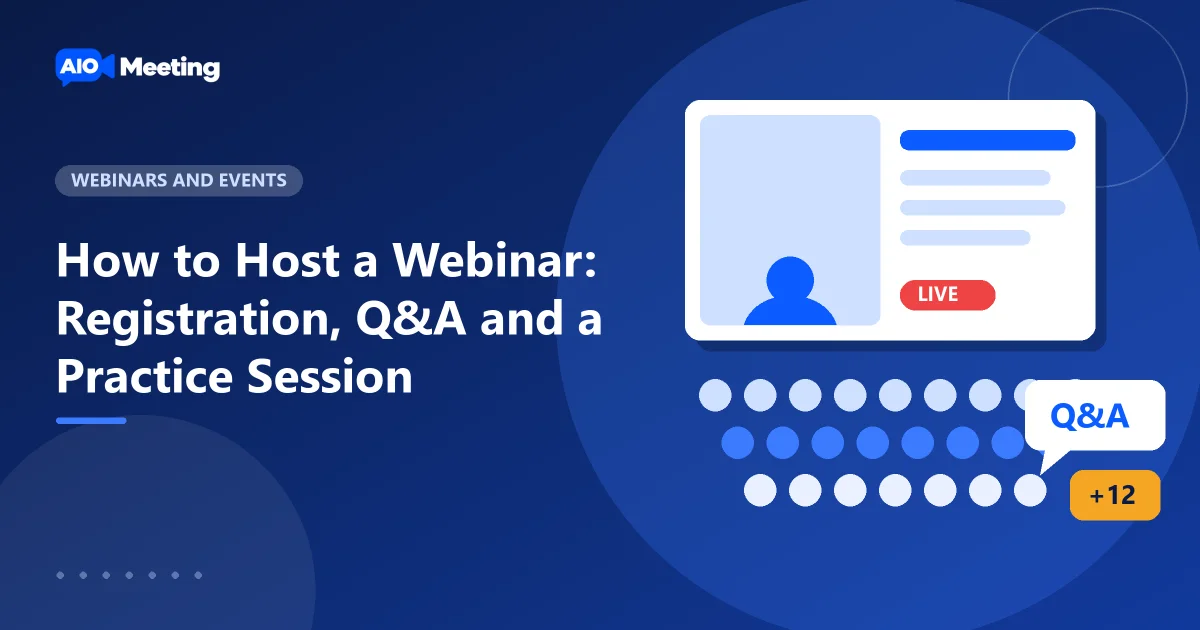
A webinar is a meeting built for an audience. Panelists speak and share. Attendees watch and listen, without their cameras and microphones in the way. That makes it the right format for product launches, lectures, town halls and training for many people. This guide shows how to host a webinar from the first invitation to the follow-up e-mail.
Meeting or webinar?
- Choose a meeting when everyone should talk, for example a team call or a small class.
- Choose a webinar when a few people present to many. Attendees do not appear in the room; everyone sees how many are watching.
Webinars are a package feature, and your package sets how many attendees one webinar can hold. Compare the limits on the pricing page.
Step 1: schedule the webinar
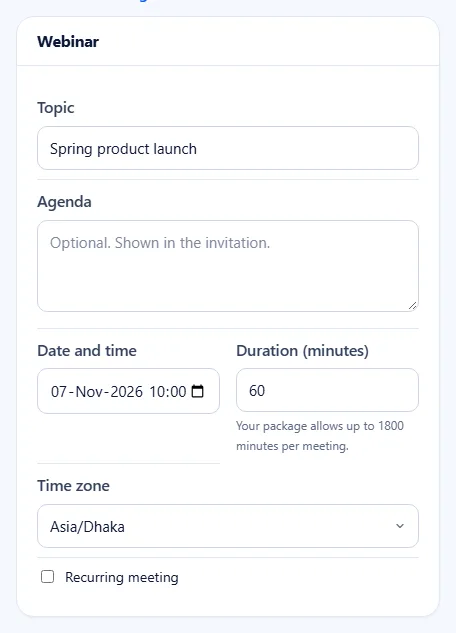
- Open Schedule a Meeting and choose Schedule a webinar.
- Give it a topic people will search for, such as "Product launch: what is new in spring".
- Set the date, time zone and duration. Add an agenda: people register more when they know what they will learn.
- Save. The webinar appears in its own Webinars tab on the Meetings page.
Step 2: collect registrations
Registration tells you who is coming and gives each person a personal join link. When you schedule, set Registration to automatic approval for open events, or to approval of each person for invite-only events. Share the registration link instead of the join link.
When the site has the Webinar Pro plugin, each webinar also gets a branded sign-up page with a cover picture and your own questions, such as company or job role. You see the list of people who registered and can download it.
Step 3: rehearse in a practice session
With Webinar Pro, start the webinar in practice mode. You and your panelists check sound, slides and the order of speakers. Attendees who arrive early see a waiting screen that says the webinar will begin shortly. When you are ready, press Start broadcasting. If something goes wrong, you can go back to practice.
Tip: run the practice 15 minutes before the start. Test screen sharing with sound if you show a video. Our screen sharing tips help here.
Step 4: panelists and attendees
The host, co-hosts and panelists have video, sound and screen sharing. In the People panel, Make panelist lets an attendee speak, for example for a live question. Make attendee moves a panelist back. Keep a co-host on hand to manage people while you present.
Step 5: take questions with Q&A
A busy chat hides good questions. With Webinar Pro, attendees ask in a Q&A panel instead:
- Attendees type a question for the host. You decide whether questions may be anonymous.
- Others upvote the questions they want answered, so the best ones rise to the top.
- Panelists answer in writing, or mark a question as answered live.
- You choose whether attendees see all questions or only their own.
Step 6: record and follow up
Press Record when you start broadcasting. A cloud recording appears under Recordings, ready to share with a link. Send it to everyone who registered, including the people who could not come. See how to record online meetings. After the webinar, the report shows who registered, who attended and for how long.
Want an even bigger audience?
When the site has the Live Streaming plugin and your package includes streaming, you can also send the webinar live to an RTMP service, such as a video platform or a social network. Read more in our guide to plans and large meetings.
Frequently asked questions
Can attendees turn on their camera in a webinar?
No. Attendees watch and listen. The host can make an attendee a panelist, and then that person can use the camera and microphone.
Do attendees need an account?
No. They open the link or register with their name and e-mail. Only the host needs an account and a package with webinars.
What is a practice session?
A rehearsal before you go live. Panelists can talk and test while attendees see a waiting screen. You start the real webinar with Start broadcasting.
Can I download the list of people who registered?
Yes. With Webinar Pro you see the registrations of each webinar and can download the list. The help article on webinar registration explains more.